

Blogs
Date 29 June 2026
In this blog I will share some tips and tricks I have discovered and picked up over my time scripting with JMeter. Hopefully these will help alleviate some stress and allow you to improve your scripting abilities!
1. Save regularly
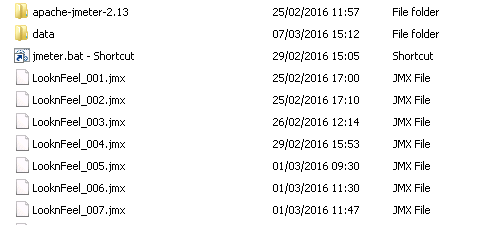
Call script My_Jmeter_Script_001.jmx and update 002, 003 every time a significant change is made.
- Sounds obvious but it is easy to be caught-out by a JMeter malfunction. There is no in-built back-up, and unless you enable undo you will have a tough time trying to recreate lost changes.
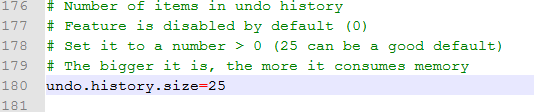
2. Make sure you are using the most up-to-date JMeter, and make sure undo/redo is enabled (it is off by default)
- This can be achieved by enabling in the settings by adding undo.history.size=25.
- It should be noted that there are some script backwards-incompatibility issues, so if you find an existing script does not work with the latest version of JMeter, try a previous version.
- For new scripting it is highly advisable to use the most current release.
3. Record your journey and split in to steps to help identify transactions
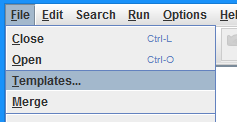
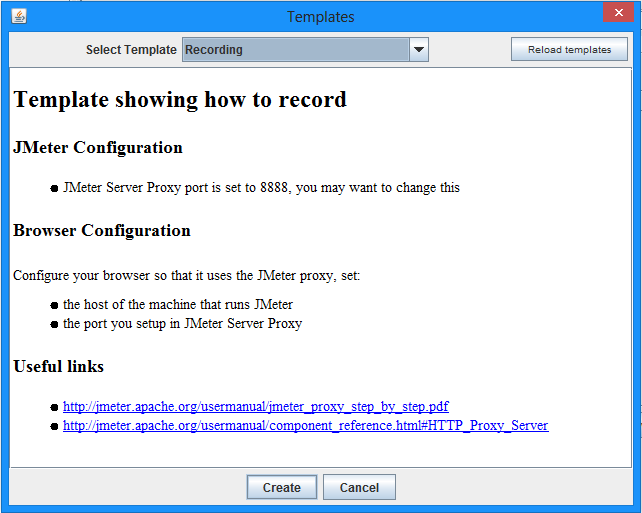
- Be sure to add in a cache manager as this is not automatically added by the template and is very useful:
- Step 1: Load page
- Step 2: Do some action
- Step 3: Another action
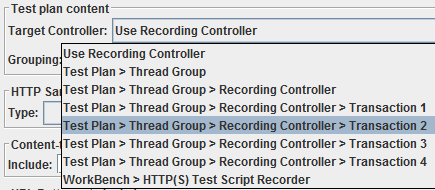
- It is possible to change the target controller part-way through a recording, so this allows a fast and accurate way to divide your test into separate transactions. You can even rename them immediately after so you don’t forget which one is which!
4. Increase heap size of your jar file to ensure tests run to completion
- Open a command prompt in your JMeter bin directory (shift and right click -> open command window here) and type:
- java –Xms1024M –Xmx1024M -jar ApacheJMeter.jar
- change the 1024M as required to increase or decrease the heap size as necessary.
- Xms is the minimum, and Xmx is the maximum. If you are having trouble with JMeter crashing partway through a test consider this. Other options are to disable the results tree, which should be done whilst running a test anyway! This tip is very useful if you are testing multiple iterations on heavy pages.
- Alternatively, it is possible to set this in the jmeter.bat file which is included in your installation. Do a search for xms or xmx and set it as desired. Save and restart JMeter and enjoy your new and improved heap size!

5. Once the initial run is recorded then duplicate it and disable it
- Disable it using shortcut (Ctrl+Shift+C, Ctrl+T)
- This will ensure you have a ‘working’ reference of what the requests look like.
- This is handy when comparing parameterised requests to see what is wrong
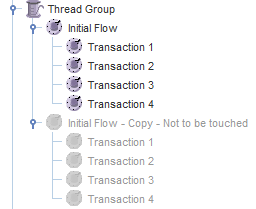
- This is a very handy trick when comparing requests to ones that other programs, such as Fiddler, record. This lets you search in either application for the corresponding parameter to find where it comes from, excellent if you have a delicate system where states need to be carried forward carefully!
6. Put your Regex variables into the Transaction name to speed up Debugging
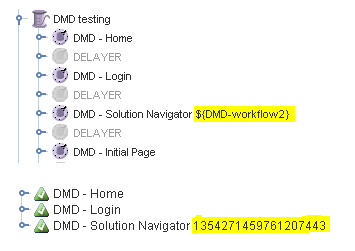
- When debugging scripts (for example regex parameter extractions) it can often be much faster to put the parameter name in the transaction name so it can be easily read on the results tree at a glance – this is much faster than using a debug sampler (but does not give as much information).
- It may be helpful to disable user-defined variables whilst recording scripts because these can interfere with requests in the future (e.g. a variable lang = en will also be detected in engage=Y as ${lang}gage=Y, which may cause issues if the lang variable is changed from en to another language).
- If you are certain that your variable value is unique and will only appear in one location, then setting it as a user defined variable can help speed up eventual parameterisation.

Changing the value of the lang variable in this case will invalidate the request. If the language were to be set to de then the request would include a degage parameter, and will likely fail.
That’s all for the time being! If you have any questions, comments or tips of your own then please let us know! And stay tuned for Part 2…

About the author
Team Capacitas

FinOps and AI: Building the Financial Discipline for the Next Wave of Enterprise Intelligence
AI FinOps represents an evolution rather than a replacement of traditional FinOps. It extends the model into a domain where financial, technical, and product decisions are tightly interconnected.

Confidence Under Load: How We Verified AKS Readiness for Peak
How Capacitas verified AKS readiness for peak demand by validating workload performance, autoscaling, cluster capacity, monitoring, and incident response.

Building Cloud Resilience: Lessons from the AWS Outage
Learning from the Latest Outage. Events like this week’s AWS disruption highlight one clear truth: resilience must be designed, not assumed.

Bringing Order to Chaos: A Practical Guide to Chaos Testing in the Cloud
In today’s cloud-native environments, resilience is not optional—it’s critical. Chaos testing has emerged as a key practice for validating system behaviour under failure conditions.