Full series: capacity modelling guide
Part 2 of this series discussed how a forecast of component usage could be calculated; using the situation where no business forecast data was available. In this penultimate part, we will look at how user-driven scenarios can be built, to provide flexibility in the model. This may not be of paramount importance to all of you; you may just want to develop a capacity forecast, which was covered in the last two blogs of the series. But, if you expect the model to be used by others, you should consider the controls and aesthetics that you can provide to the users.
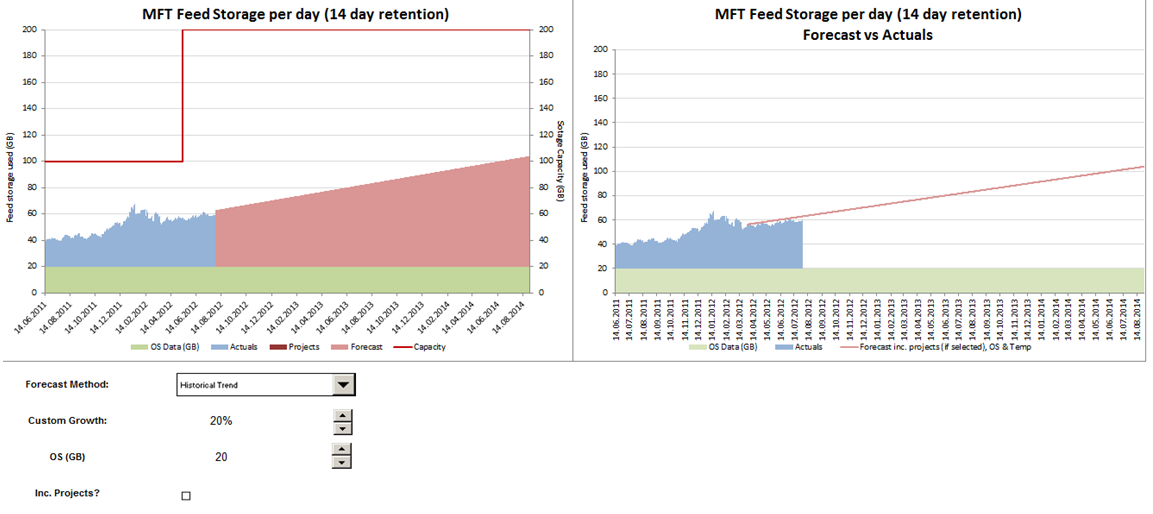
For ease of explanation, I have included the output of the capacity model below (the charts and controls below were all arrange on a single worksheet). I will then explain various steps to generating this output.
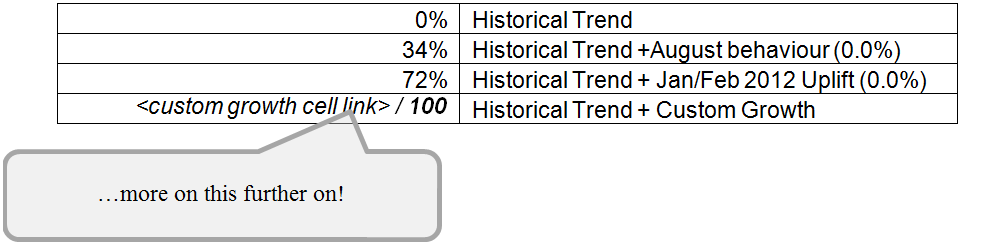
As we do not have business forecasts, I wanted to allow users to inflate the resource to allow various scenarios to be modelled. However, I also wanted to provide some information about the levels of growth that have been experienced historically. After discussions with the business, I discovered that there were two key periods when major releases took place. I analysed the file storage space used during these periods and compared it to the rest of the data, to calculate a percentage uplift that represented these events. I documented these in a table on the admin sheet.
Next, I needed to give the user a way of selecting one of the forecast methods. This can be done in two steps:
Once you have added the Combo Box to the output sheet, right-click and select Format Control to adjust its settings:
Next, you need your forecast to adjust based on the chosen forecast method. Currently, our forecast calculation is as follows:
( x SLOPE) + INTERCEPT
The cell link created in step 1 above will store an index to the user’s selection from the input range. So, if the user has selected the “Historical Trend” forecast method, the named cell will contain a 1. Therefore, we can use the index position to pick up the corresponding percentage uplift from the table as follows:
OFFSET(
-1,0,1,1) ,This will pick up the right percentage uplift based on the chosen forecast method. We can then apply this to our current forecast value. The resultant formula for the forecast is therefore:
(( x SLOPE) + INTERCEPT) x (1+ OFFSET(
If the user selects the fourth Forecast Method, we want them to be able to specify the amount of growth they’d like to add to the forecast. This is done using a Spin Button, which operates in the same way as the Combo Box described in the Forecast Method section above:
The following controls need to be set on the Spin Button:
To display the correct custom percentage on the output sheet, use the formula
/ 100
and then format the cell as a percentage. This same formula should be used in the table on the admin sheet which contains the four Forecast Methods. You now have a parameter to add a custom uplift to the forecast storage size. This should automatically apply to the forecast value whenever the spin button is changed.
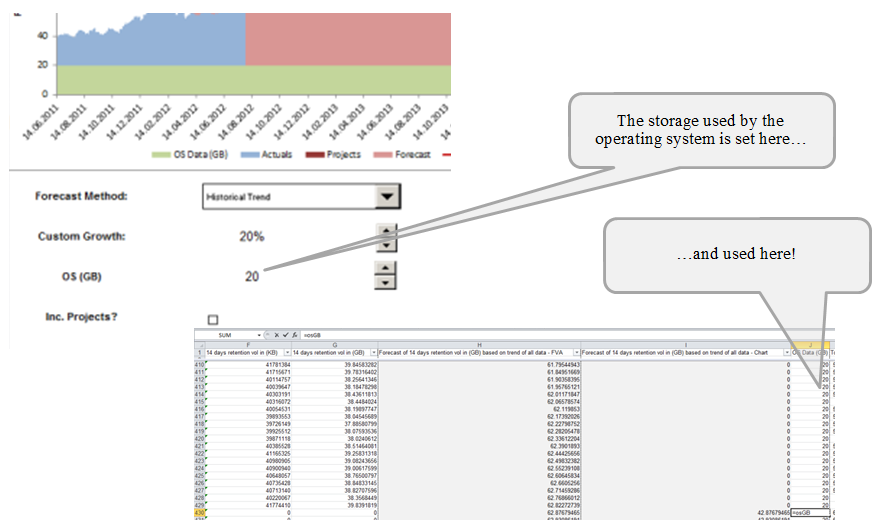
The resource data that we used in our forecast was calculated based on the volume of files loaded into the database per day. These daily volumes were summed over every 14 day period to determine the file storage space used. In this particular example, the disk being capacity modelled also needed storage space for the operating system. This usage should remain fairly constant over time. For extra flexibility, we have parameterised this value so that the user can easily change the amount of storage used by the operating system and see the effect on overall storage capacity. This is also achieved using a Spin Button
The following controls needs to be set on the Spin Button:
You should now have a spin button that changes the amount of storage used by the operating system and updates the appropriate cell. As you have given this cell a name, you can now set the value in a new column in your data sheet, to refer to this name. This means that for every data point you have an OS size value too.
That concludes this part of the blog series. At this point, we have built some flexibility into the model to allow the user to easily consider various scenarios. In the next and final part we will look at incorporating project growth into the model and some tweaks to build our required charts.
Full series: capacity modelling guide